 AI
Development
AI
Development
 Shopify
 Magento Open Source
 Adobe Commerce
 WordPress
 B2B Excellence





How to Connect Google Business Profile to Google Analytics (GA4): Step-by-Step Guide
- Jul 7, 2026
- By Ashish Kaushal


Business owners have traditionally used Google Business Profile (GBP) Insights and Google Analytics 4 (GA4) separately to track online customer engagement. While GBP provides basic metrics like calls, direction requests, and website clicks, it has lacked the deeper attribution and reporting offered by GA4.
Google is now rolling out a native integration between GBP and GA4, allowing businesses to connect their profile directly to GA4. Once enabled, GBP performance data can be viewed alongside website analytics in one place.
This integration helps businesses better understand local customer behaviour, evaluate local SEO performance, and make more informed, data-driven decisions without switching between platforms.
Why Should You Connect Google Business Profile to GA4?
Customers often discover businesses through Google Search or Google Maps. When they take actions such as visiting your website, requesting directions, calling your business, or booking an appointment, those interactions can signal strong purchase intent.
Until now, analysing that data required switching between Google Business Profile Insights and Google Analytics 4. While both platforms provided valuable information, they offered separate views of the customer journey.
The new Google Business Profile–Google Analytics 4 integration brings GBP metrics directly into GA4. As a result, you can better understand how local customers interact with your business and how those interactions contribute to your broader marketing goals.
Here are four key benefits of connecting Google Business Profile to Google Analytics 4.
Benefits of Connecting Google Business Profile to GA4
1. View Local Customer Engagement in One Place
Instead of jumping between Google Analytics and Google Business Profile, you can view website traffic alongside GBP engagement metrics in a single reporting platform. This provides a more complete picture of how customers discover and interact with your business.
2. Measure the Effectiveness of Your Local SEO Strategy
Tracking how customers find your business through Google is an essential part of any local SEO strategy. Whether you’re trying to rank for more local keywords or improve your visibility in Google Search and Maps, connecting Google Business Profile to GA4 helps you measure the impact of your optimization efforts.
3. Gain Better Google Business Profile Insights
The integration helps you identify which changes to your Google Business Profile lead to increased customer engagement. Additionally, tracking performance over time can inform your optimisation strategy and help you make profile updates with greater confidence.
4. Make Smarter Local Marketing Decisions
If you run Google Ads campaigns targeting your local area or promote seasonal offers, it can be difficult to understand how those efforts influence customer engagement.
By connecting Google Business Profile to GA4, you gain additional insight into how your local marketing activities contribute to website traffic and conversions.
You’ll also gain a better understanding of what happens after someone clicks through to your website from your Google Business Profile, helping you connect local discovery with on-site behaviour.
What Is Google Business Profile Integration?
Google Business Profile integration with Google Analytics 4 allows you to view GBP metrics directly within GA4. Once connected, eligible metrics are automatically sent to GA4, where you can then access them through dedicated Google Business Profile reports.
According to Google’s official announcement, the integration helps you learn how customers interact with your Google Business Profile across Google Search and Maps.
Source: Google’s GA4 Help documentation
The feature also simplifies Google Business Profile reporting by reducing the need for some UTM parameters. However, it does not replace UTM tracking. Google still recommends using UTM parameters to measure marketing campaigns and gain deeper insights into your traffic sources.
By bringing Google Business Profile data into Google Analytics 4, businesses can better understand how customers discover and engage with them online while making more informed decisions about local SEO and marketing performance.
Things You Need to Know Before Getting Started
Before linking your Google Business Profile to Google Analytics 4, make sure you meet the following requirements.
1. Google Analytics 4 Property
You must already have a Google Analytics 4 (GA4) property installed on your website. Universal Analytics properties are not supported.
2. Verified Google Business Profile
Your business must have a verified Google Business Profile.
Only verified business profiles can be connected to Google Analytics 4.
3. Proper Permissions on Both Platforms
You need the appropriate permissions in both Google Analytics and Google Business Profile to establish the connection.
Google Analytics
You must have one of the following roles:
- Administrator
- Editor
Google Business Profile
You must have one of the following roles:
- Primary Owner
- Owner
- Manager (available in select countries)
If you don’t have the required permissions, you won’t be able to link the two accounts.
4. Access to Both Accounts
Sign in to both Google Analytics 4 and Google Business Profile using the same Google account or use an account that has the required permissions for both products.
5. Website Listed on Your Google Business Profile
Your Google Business Profile should already include your website URL. As a result, customer interactions from your Business Profile can be associated with your website reporting in Google Analytics 4.
How to Connect Google Business Profile to GA4
The setup process only takes a few minutes if you already have access to both platforms.
Follow the steps below.
1: Sign in to Google Analytics 4
- Log in to your Google Analytics account and open the GA4 property associated with your business.
- From the main dashboard, select the correct property if you manage multiple websites.
- Before continuing, confirm that you’re working in the correct GA4 property, as the connection applies only to the selected property.
2: Open the Admin Settings
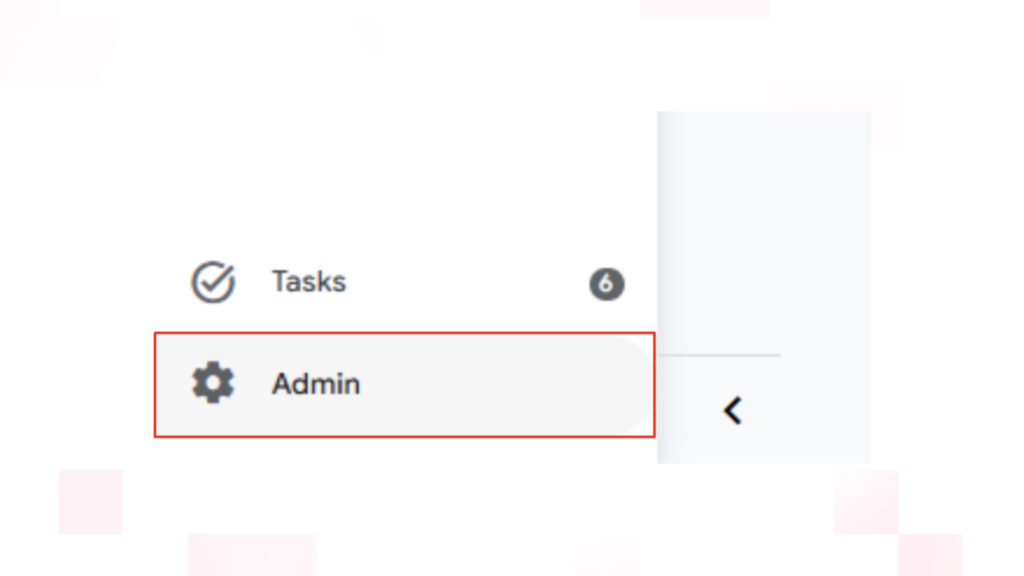
- In the lower-left corner of Google Analytics, click the Admin icon.
- The Admin section contains all property-level settings, including integrations with other Google products.
- Within the Property column, locate the Product Links section.
- Google has grouped integrations such as Search Console and Google Ads here, making it easier to manage connections from a single location.
3: Select Google Business Profile
Inside Product Links, click Google Business Profile.
If your property is eligible and your account has the necessary permissions, Google will display the available Business Profiles that can be connected.
If you don’t see this option, check that:
- You’re using a supported GA4 property.
- Your Google account has the required permissions.
- Your Google Business Profile has been verified.
- The feature has rolled out to your account, as Google may enable it gradually.
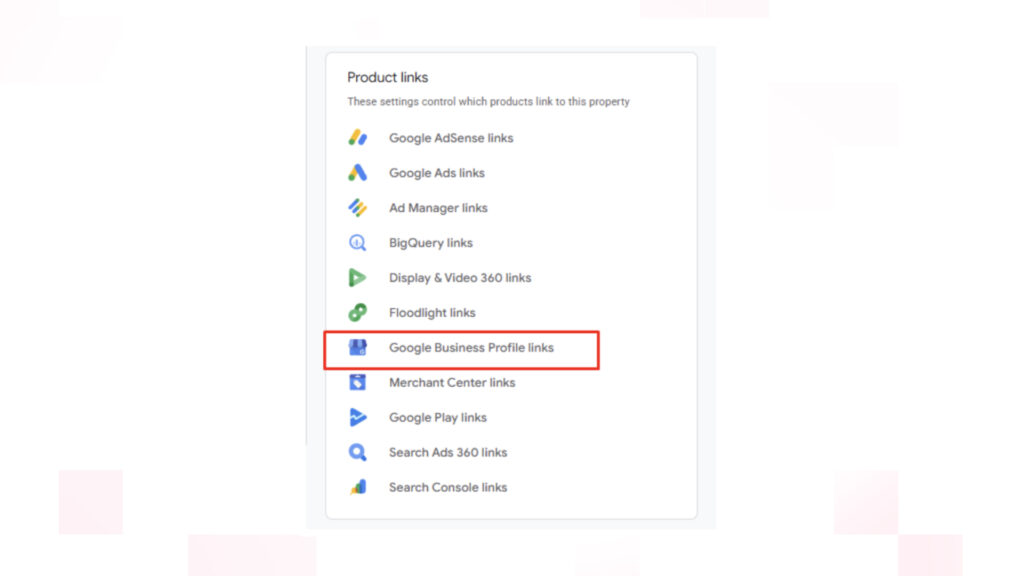
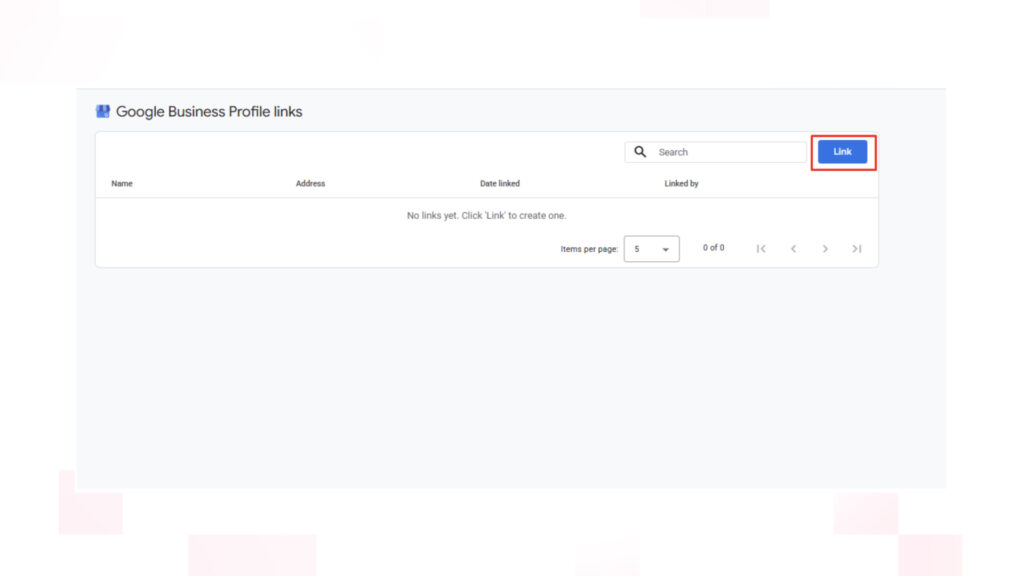
4: Click the Link Button
After opening the Google Business Profile section under Product Links, click the Link button to start connecting your Business Profile.
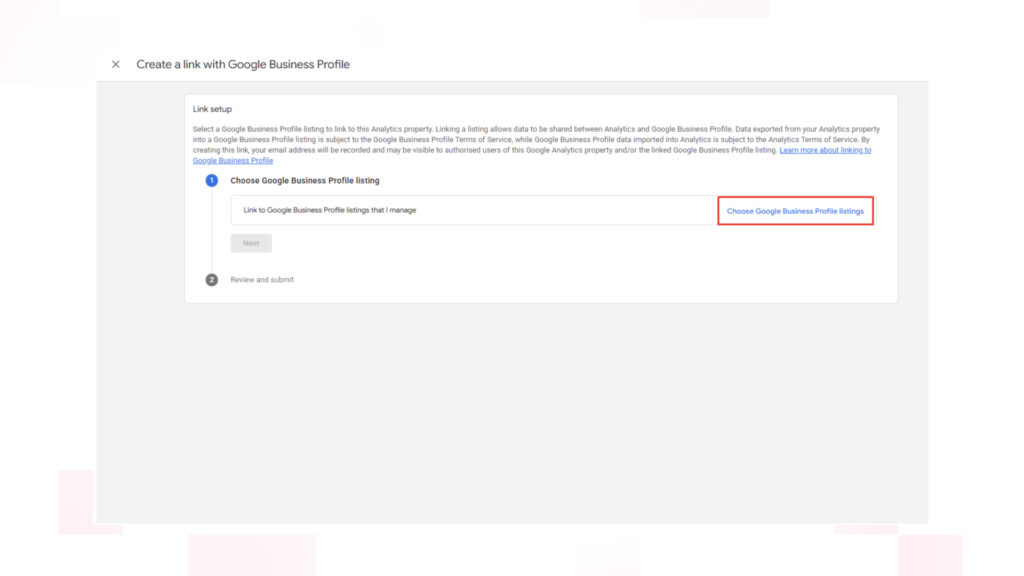
5: Choose Your Google Business Profile Listing
Click Choose Google Business Profile Listing and select the Google Business Profile you want to connect to your GA4 property.
If you manage multiple Business Profiles, make sure you select the correct listing before proceeding.
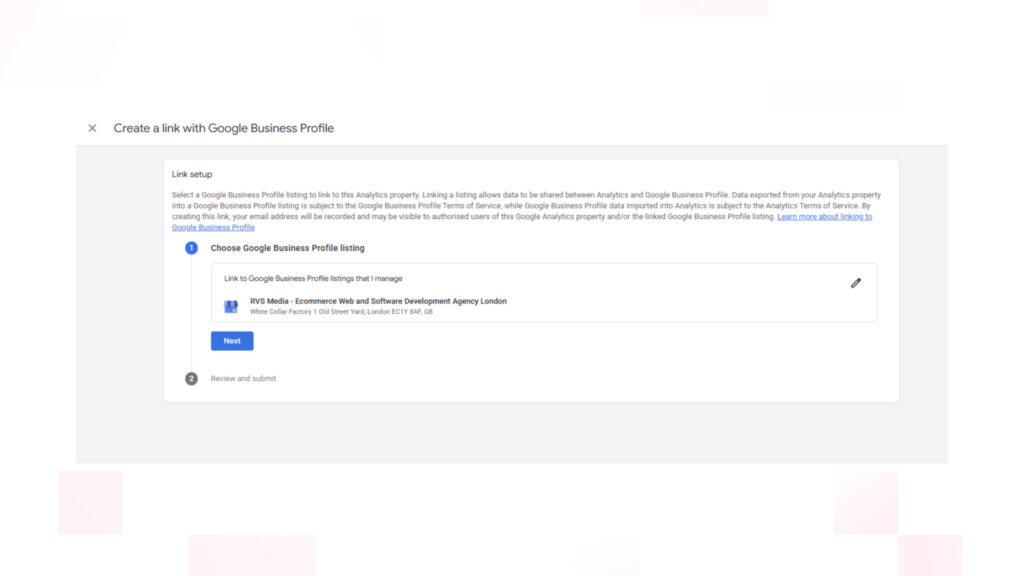
6: Click Next
After selecting your Business Profile, click Next to continue with the setup.
Before moving on, verify that you’ve selected the correct business listing, especially if you manage multiple locations.
7: Review the Data Sharing Settings
Once you’ve selected your Business Profile, Google will ask you to review the permissions and data sharing information.
Take a moment to confirm:
- The selected Google Analytics property
- Selected Google Business Profile
- The Google account you’re using
- The information that will be shared between the two products
Google only imports supported Business Profile metrics into GA4. The integration does not modify your Business Profile, website, or existing Analytics configuration.
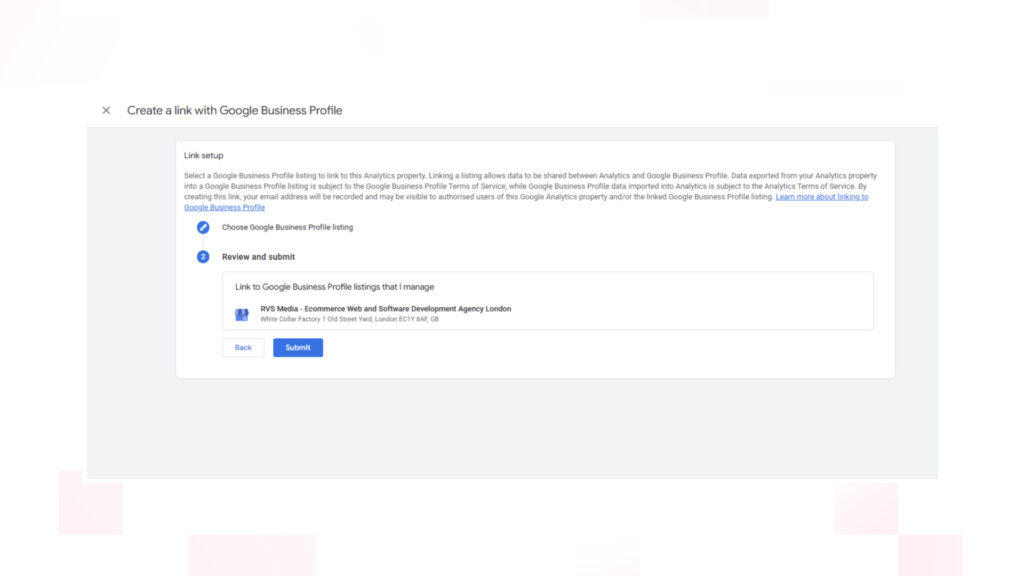
After reviewing the details, click Submit or Complete Link.
8: Complete the Connection
Google Analytics will process your request and establish the connection between your GA4 property and your Google Business Profile.
If successful, you’ll see a confirmation message indicating that the product link has been created.
Your Google Business Profile should now appear under Admin → Product Links, allowing you to manage or remove the connection whenever needed.
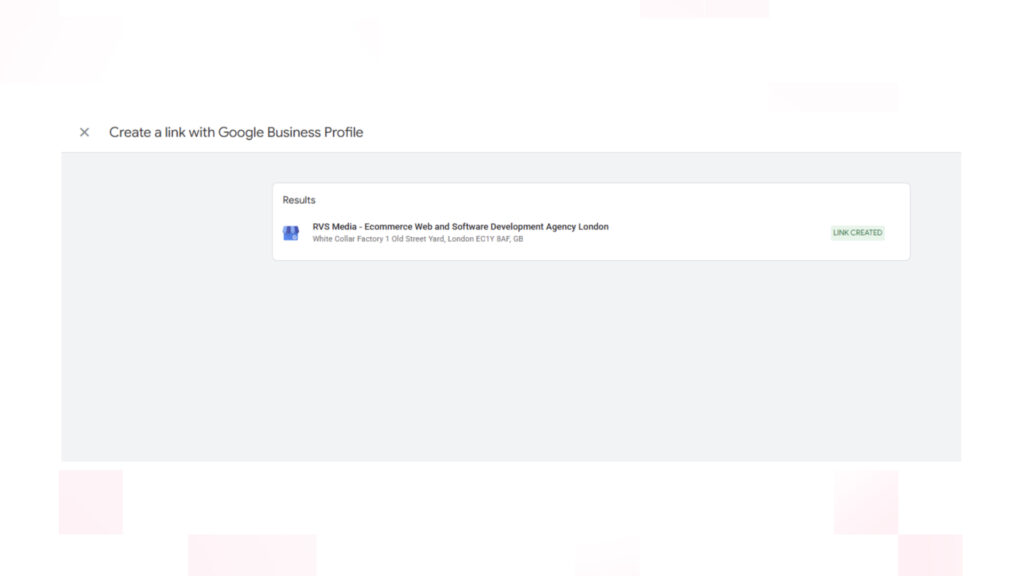
Although the setup takes only a few minutes, reporting data may not appear immediately. Google may take some time to begin populating reports after the connection has been established.
9: Verify That the Integration Is Working
Before relying on the new reports, it’s important to verify that your Google Business Profile is successfully connected.
Navigate to Reports → Business Objectives → Google Business Profile to access the new report once data begins populating
You should see:
- Connected Business Profile
- Connection status
- Linked GA4 property
If everything looks correct, the integration is complete.
The next step is confirming that data is flowing into your reports.
What Data Can You See in GA4?
Once Google begins processing your data, you’ll gain access to a dedicated Google Business Profile report in Google Analytics 4.
Per Google’s Analytics Help documentation, this report helps you better understand how customers discover and interact with your Business Profile before visiting your website or making a purchase.
Available metrics vary depending on your property and rollout status, but may include:
- Website clicks
- Phone calls
- Direction requests
- Bookings
- Messages
- Menu interactions (where applicable)
- Total customer interactions
Instead of switching between Google Business Profile Insights and Google Analytics, you can now view these interactions alongside your website analytics.
This gives you a more complete picture of how local customers discover your business, engage with your Business Profile, and continue their journey on your website.
These insights can also support better UI/UX Design decisions by revealing how visitors interact with landing pages after arriving from local search results.
Although Google Business Profile metrics are available inside GA4, they currently have some limitations. At launch, these metrics are available only in Google’s standard Google Business Profile reports. They cannot be used in GA4 Explorations, comparisons, audience filters, or custom report filtering. If you require advanced analysis or location-specific reporting, you’ll still need to use Google Business Profile reporting alongside GA4.
How to Tell If Google Is Collecting Your Data
After connecting your Google Business Profile and Google Analytics 4 accounts, however, don’t expect data to appear immediately.
Google needs time to process your information and import your Business Profile metrics into GA4. Depending on your account, this may take several days.
To confirm everything is working correctly:
- Open your GA4 property.
- Navigate to the Google Business Profile report.
- Check whether Business Profile metrics begin populating over the next few days.
- Compare the reported interactions with your Google Business Profile dashboard.
If you still don’t see data after several days, verify that your accounts are properly connected and that you have the required permissions in both Google Analytics and Google Business Profile.
Which Customer Interactions Can You Track?
After connecting Google Business Profile to GA4, you can measure how customers interact with your Business Profile across Google Search and Google Maps. As a result, you gain valuable insights into customer engagement and can make more informed marketing decisions.
Depending on your account and the features available for your business, you may be able to track interactions such as website visits, phone calls, direction requests, bookings, messages, and other customer actions directly within Google Analytics 4.
| Metric | What It Measures | Why It Matters |
| Website Clicks | Visits to your website from your Business Profile | Measures traffic generated by your profile |
| Phone Calls | Calls initiated directly from your profile | Indicates customer intent and lead generation |
| Direction Requests | Requests for driving or walking directions | Helps measure offline customer interest |
| Bookings | Reservations or appointments made through supported integrations | Tracks high-value customer actions |
| Messages | Customer conversations initiated from the profile | Measures engagement with potential customers |
| Total Interactions | Combined customer actions across your profile | Provides an overall view of Business Profile performance |
| Menu Interactions | Views or interactions with menu content (where available) | Helps restaurants and food businesses understand customer interest in their offerings |
Google Business Profile integration with GA4 takes Local SEO reporting beyond rankings alone.
While rankings are an important performance metric, they only tell part of the story. If your goal is to improve your visibility in local search, it’s equally important to understand what customers do after they find your business.
Once your Google Business Profile is connected to GA4, you can measure these customer actions alongside your website analytics. As a result, you gain a clearer picture of how your Local SEO efforts influence real business outcomes.
Why This Integration Matters for Local SEO
Many businesses focus on improving local search rankings but have limited visibility into what happens after customers discover their business.
By connecting Google Business Profile to GA4, you can close that gap and better understand how customers engage with your business beyond impressions and rankings.
For example, you can identify whether updates to your Business Profile result in:
- More website visits
- Increased phone enquiries
- Higher booking volumes
- Greater customer engagement
- Better conversion rates
By understanding how changes to your profile influence customer behaviour, you can make more informed decisions about your Google Business Profile optimisation strategy.
The integration also strengthens your Local SEO reporting by allowing you to evaluate Business Profile performance alongside website engagement, conversion events, and other marketing channels within a single analytics platform.
Using Google Business Profile Analytics with GA4
Once your Google Business Profile is connected to GA4, you can answer questions that were previously much harder to measure, including:
- Which business locations generate the most customer interactions?
- Which profile updates lead to the greatest increase in engagement?
- Do seasonal promotions generate more phone calls or website visits?
- What actions do customers take before converting?
- How much does local search contribute to overall business growth?
Because GA4 allows you to build custom reports and explorations, you can combine Business Profile data with website analytics to uncover deeper insights.
For example, your Google Business Profile may generate a high number of website clicks, but if those visitors rarely convert, it could indicate an opportunity to improve your landing pages, calls to action, or overall user experience.
Likewise, if customer interactions increase after publishing new photos, updating your business description, or responding to reviews, you’ll have stronger evidence that those optimisation efforts are producing results.
These insights make it easier to prioritise the changes that have the greatest impact on customer engagement and conversions.
Conclusion
Google Business Profile shows how customers discover your business through Google Search and Maps, while Google Analytics 4 reveals what happens after they reach your website. Connecting the two gives you a more complete understanding of the customer journey, helping you measure the impact of your local marketing efforts with greater confidence.
The integration brings valuable local engagement metrics into GA4. However, it complements your existing UTM and Google Business Profile reporting rather than replacing it. As a result, it’s easier to evaluate performance alongside website traffic, conversions, and other acquisition channels.
Those insights can help you make smarter decisions about your Local SEO strategy, optimise your Google Business Profile with greater confidence, and focus on the activities that drive meaningful business results.
If you’re looking to improve your Local SEO strategy, our team of digital marketing experts can help you optimise your Google Business Profile, implement Google Analytics 4, and use your data to make more informed marketing decisions.